Why Your Video Call Background Matters More Than You Think
Every day, over 300 million people participate in Zoom meetings alone. When you add Microsoft Teams, Google Meet, and other platforms, the number of professionals staring at virtual backgrounds on a daily basis is staggering. According to recent workplace surveys, the average knowledge worker now joins 8 to 12 video calls per week, spending a significant portion of their professional life on camera.
Here is the critical insight most professionals overlook: research published in the Journal of Business and Psychology confirms that people form impressions within seven seconds of encountering someone new. On a video call, those seven seconds include everything visible on screen, and your background occupies roughly 70 to 80 percent of the visible frame. That means your backdrop is doing most of the talking before you even say hello.
Yet despite this, the vast majority of professionals either use a generic blurred background, a stock photo of a tropical beach, or worse, display an unintentionally cluttered room. Each of these choices sends a message, and none of them say "I am a credible professional who takes my personal brand seriously."
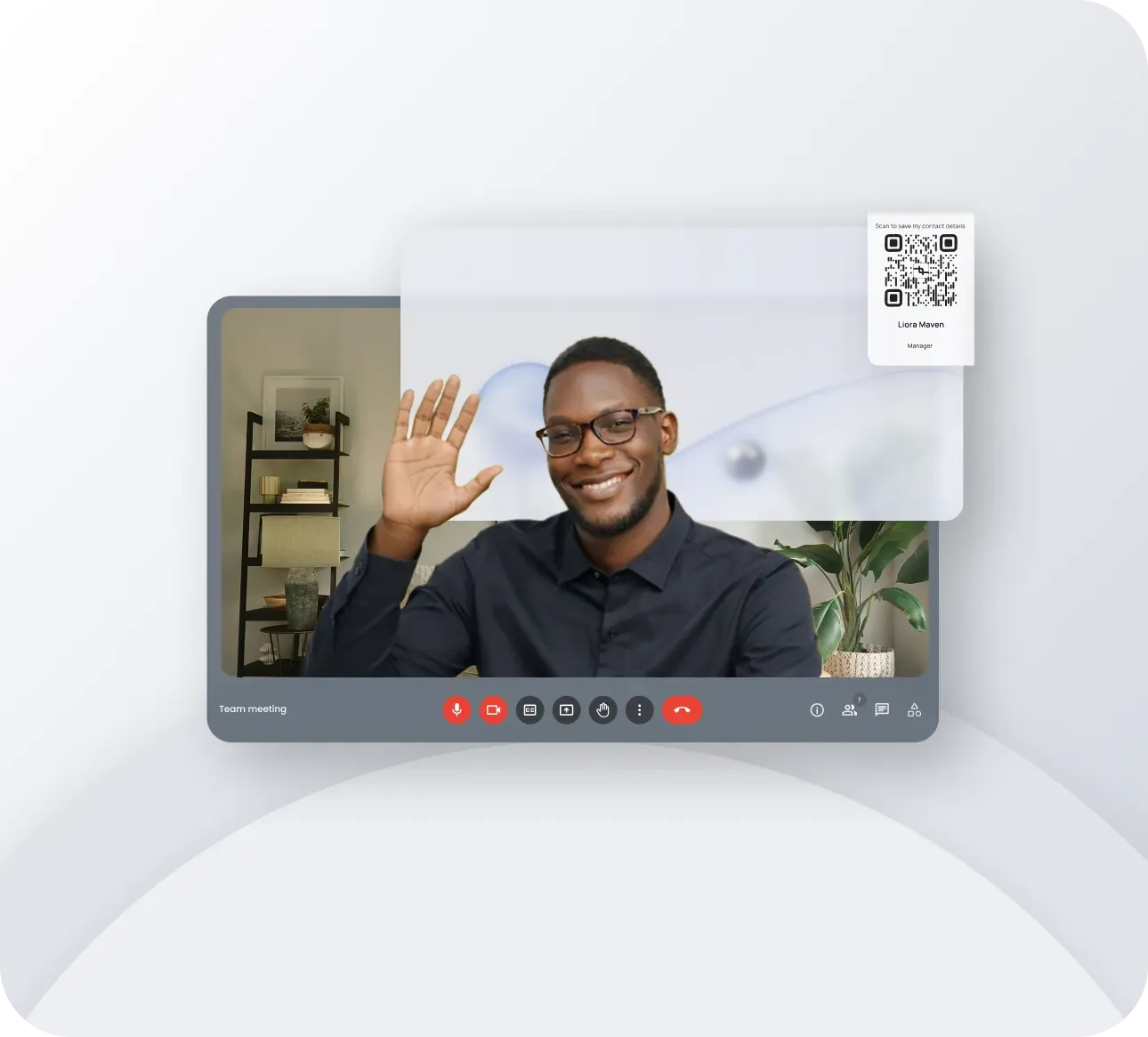
A branded virtual background transforms this wasted visual real estate into a powerful branding asset. Instead of letting your background say nothing or something counterproductive, you can make it work for you on every single call, reinforcing your brand identity, establishing credibility, and even generating leads. When paired with a tool like Lynqu, your virtual background becomes a seamless extension of your digital business card strategy.
Think of it this way: if you had a billboard that 10 people saw every day, five days a week, you would invest in making it look professional. Your video call background is that billboard, and the audience is made up of the people who matter most to your business: prospects, clients, partners, and colleagues.
The ROI of Branded Virtual Backgrounds
Let us put some numbers behind this concept. If you attend just 10 video calls per week, that is 520 calls per year. Each call exposes one or more people to your background. Even conservatively estimating two attendees per call who notice your background, that is 1,040 brand impressions per year from a single person.
Now scale that across a team. A company with 20 employees using branded backgrounds generates approximately 10,400 brand impressions annually, all without spending a single dollar on advertising. For larger organizations, the numbers become even more compelling. A 100-person company could achieve over 50,000 annual impressions through this single, zero-cost channel.
Research from the Ehrenberg-Bass Institute for Marketing Science supports the power of consistent visual branding. Their studies demonstrate that consistent brand presentation across all touchpoints can increase brand recognition by up to 80 percent. Video call backgrounds represent one of the most overlooked touchpoints in modern business communication.
The cost-effectiveness is remarkable when compared to other branding channels. A LinkedIn sponsored content campaign might cost $5 to $15 per thousand impressions. A Google Display Network campaign runs $2 to $10 per thousand impressions. A branded virtual background costs nothing beyond the initial design time, and the impressions come from high-value, one-on-one or small-group interactions where attention levels are significantly higher than passive ad viewing.
Beyond raw impressions, branded backgrounds contribute to what marketers call brand consistency. When a prospect visits your Lynqu profile, sees your email signature, joins your video call, and encounters the same visual identity at every step, it creates a sense of professionalism and trustworthiness that fragmented branding simply cannot achieve.
Turn Your Backdrop into a Lead Generation Tool
A branded background does more than build awareness. With the right design elements, it can actively generate leads during every video call. Here are three strategies that turn a passive backdrop into an active conversion tool.
Add a QR Code Linking to Your Lynqu Card
Place a clear, scannable QR code in the lower-right corner of your background that links directly to your Lynqu digital business card. When meeting participants want to connect with you, they can simply point their phone at their screen and instantly access your full contact information, social profiles, and portfolio. This eliminates the awkward end-of-meeting exchange where someone says "I will send you my details after the call" and then forgets. With Lynqu, your contact information is always one scan away, and you can track exactly how many people engaged with your card.
Include a Compelling Tagline
A short, memorable tagline in the upper portion of your background reinforces your value proposition throughout the call. Keep it to five to eight words maximum. Examples include phrases like "Helping SaaS Teams Scale Revenue" or "Award-Winning Architecture and Design." This tagline should align with the headline on your Lynqu card to create a consistent message across touchpoints. Every time a participant glances at your background, they are reminded of what you do and the value you provide.
Display a Social Proof Badge
If you have a notable certification, award, or affiliation, a small badge or logo in your background adds instant credibility. This might be a "Certified Financial Planner" designation, a "Forbes 30 Under 30" badge, a "Google Partner" logo, or an industry association membership mark. Social proof works continuously in the background, literally, building trust without you needing to mention it verbally. The key is subtlety: one or two badges maximum, placed tastefully so they enhance rather than clutter.
When these three elements work together, your video call background becomes a passive lead generation machine. Prospects see your brand, understand your value proposition, notice your credibility markers, and have an effortless way to connect with you through your Lynqu card, all without interrupting the flow of the meeting.
Step-by-Step Design Guide with Platform Specifications
Creating an effective branded virtual background requires attention to technical details. A beautifully designed background that appears pixelated or gets cropped defeats the entire purpose. Follow these specifications to ensure your background looks professional on every platform.
Technical Dimensions and File Requirements
- Resolution: Design at 1920 x 1080 pixels (16:9 aspect ratio). This is the standard HD resolution that all major video platforms support natively.
- File Format: PNG is preferred for backgrounds with text, logos, or sharp edges because it preserves quality without compression artifacts. JPEG is acceptable for photographic backgrounds but will introduce slight blurring around text elements.
- File Size: Keep the file under 5MB. Larger files can cause lag when the virtual background is applied, particularly on older hardware.
- Color Space: Use sRGB color profile. Other color spaces like Adobe RGB or CMYK may display differently across monitors and video platforms, causing your carefully chosen brand colors to appear shifted.
Safe Zones: Where to Place Each Element
Your body will occupy roughly the center third of the frame, so element placement must account for this. Here is the recommended layout.
- Top-left corner: Your company logo or personal brand mark. This area is almost always visible regardless of your position on screen.
- Top-right area: Your tagline or value proposition. Keep it within the upper 20 percent of the image to avoid being obscured by your head and shoulders.
- Bottom-right corner: Your QR code linking to your Lynqu card. Size it at approximately 150 x 150 pixels minimum to ensure scannability. Add a small label beneath it such as "Scan to connect" to prompt action.
- Center area: Keep this completely clear. This is where your silhouette will appear. Any elements placed here will be hidden by your body or create a distracting overlap effect.
- Bottom-left corner: Optional space for a website URL or social proof badge. Do not overload this area.
Color and Typography Guidelines
- Brand Colors: Use your established brand palette. If your Lynqu card uses specific colors, match them exactly using hex codes. Consistency between your card and background reinforces brand recognition.
- Contrast: Ensure sufficient contrast between text and background. White or light text on dark backgrounds tends to be most readable on video calls, where screen brightness varies across participants.
- Font Choice: Use clean sans-serif fonts such as Inter, Helvetica, Open Sans, or Montserrat. Serif fonts and decorative typefaces lose legibility at the small sizes they appear in video calls.
- Minimum Text Size: No text should be smaller than 18 pixels at 1920x1080. Remember that your background will be viewed at various screen sizes, and some participants may be on laptops with smaller displays.
- Text Limit: Use no more than 10 to 15 words total across all text elements. Your background should communicate at a glance, not require reading.
Design Tools You Can Use
- Canva: The most accessible option. Search for "Zoom virtual background" templates, which are pre-sized to 1920x1080. Customize with your brand elements and export as PNG. Canva's free tier is sufficient for this purpose.
- Figma: Ideal for designers who want precise control. Create a frame at 1920x1080, set up your brand colors as styles, and use auto-layout for consistent spacing. Export at 2x for retina displays if needed.
- PowerPoint or Google Slides: Set slide dimensions to 1920x1080 pixels (or 20 x 11.25 inches at 96 DPI). Design your background as a single slide and export as PNG. This approach is particularly useful for teams that need to distribute templates without requiring design software.
Platform-Specific Setup Instructions
Once your background is designed, applying it correctly on each platform ensures it displays as intended.
Zoom Setup
- Open Zoom and click your profile picture in the top-right corner.
- Select Settings from the dropdown menu.
- Navigate to Background & Effects in the left sidebar.
- Under the Virtual Backgrounds tab, click the plus icon (+) to add a new background.
- Browse to your PNG file and select it. The background will appear in your preview immediately.
- Ensure "I have a green screen" is unchecked unless you actually have a physical green screen behind you.
- Admin tip: If you manage a team, use the Zoom Admin Portal at admin.zoom.us to set a default branded background for all users under Account Settings > Meeting > Virtual Background. You can lock this setting to prevent users from changing it.
Microsoft Teams Setup
- During a meeting, click More actions (three dots) in the meeting toolbar.
- Select Video effects or Background effects.
- Click Add new at the top of the background gallery.
- Select your PNG file. Teams accepts JPG, PNG, and BMP formats.
- Pre-upload method: You can also place your background image directly in the Teams upload folder. On Windows, navigate to
%AppData%\Microsoft\Teams\Backgrounds\Uploads. On macOS, go to~/Library/Application Support/Microsoft/Teams/Backgrounds/Uploads. Any images placed in these folders will appear automatically in your background selection panel.
Google Meet Setup
- Join or start a Google Meet session.
- Click the three-dot menu at the bottom of the screen.
- Select Apply visual effects.
- In the effects panel, click the upload icon (the plus sign with an upward arrow).
- Select your PNG file. Google Meet will apply it immediately.
- Note that Google Meet backgrounds are stored per browser session, so you may need to re-upload after clearing browser data.
Best Practices for Maximum Impact
- Keep the design clean and uncluttered. Less is always more with virtual backgrounds. A background with too many elements looks chaotic on a small video window and undermines the professional image you are trying to project. Aim for three to four elements maximum: logo, tagline, QR code, and one optional accent element.
- Test at actual viewing size. Your background will not be viewed at full 1920x1080. Most participants see it in a small tile, sometimes as small as 200 pixels wide in gallery view. Open a test meeting, shrink the window, and verify all text remains legible and the QR code remains scannable at reduced sizes.
- Match your Lynqu card branding exactly. Use identical colors, fonts, and tone between your Lynqu digital business card and your virtual background. When a contact scans your QR code and lands on your card, the visual continuity creates an immediate sense of cohesion and professionalism.
- Rotate backgrounds seasonally or for campaigns. Create two to four variants of your background throughout the year. You might have a standard version, a conference season version with an upcoming event callout, a holiday variant, or a version promoting a specific campaign. Keep the core brand elements consistent while refreshing secondary elements.
- Mind your physical lighting. Even the best virtual background fails if your lighting is poor. The AI that separates your body from the background works best with even, front-facing light. A ring light or desk lamp positioned behind your monitor dramatically improves edge detection, preventing the flickering and ghosting artifacts that make virtual backgrounds look unprofessional.
- Consider your wardrobe. Avoid wearing colors that closely match your background, as the virtual background algorithm may make parts of your clothing transparent. If your branded background is primarily navy blue, avoid wearing a navy shirt on camera.
Common Mistakes to Avoid
- Low resolution images. Using a background below 1920x1080 results in visible pixelation that screams unprofessional. Never stretch a smaller image to fit. Always design at the native resolution or higher and export at the correct dimensions.
- Too much text. If participants need more than two seconds to read your background, it has too much text. Your background is a billboard, not a brochure. Limit yourself to a tagline and a URL or QR code. Everything else belongs on your Lynqu card, where people can explore at their own pace.
- Wrong file format. JPEG compression creates visible artifacts around text and logos, making them look blurry and cheap. Always use PNG for backgrounds that contain text, logos, or sharp graphical elements. Reserve JPEG only for purely photographic backgrounds without overlaid text.
- Forgetting the mirror effect. Most video platforms mirror your image by default, meaning text in your background appears reversed to you in your self-view. However, other participants see it correctly, not mirrored. Do not reverse your text to compensate for what you see in your own preview. Design your background with text reading normally from left to right and trust that participants will see it correctly.
- Using busy photographs. A photograph of a stylish office or city skyline might seem like a good idea, but detailed photographs create visual noise that competes with your face for attention. The virtual background algorithm also struggles more with detailed images, creating more edge artifacts around your silhouette. Use simplified, graphic backgrounds with solid colors or subtle gradients instead.
- Ignoring dark mode considerations. Many professionals work in dimly lit environments or use dark mode on their devices. A predominantly white or very bright background can be jarring and even cause glare. Design your background with medium to dark tones that look comfortable across different ambient lighting conditions.
Who Should Use Branded Virtual Backgrounds
While every professional can benefit from a branded background, certain roles see outsized returns from this strategy.
- Sales representatives who spend hours each day on prospect and client calls. Every call is an opportunity to reinforce brand awareness and provide an easy path to connect via a QR code linking to their Lynqu card. For sales teams, branded backgrounds also create visual consistency across the entire organization.
- Consultants and freelancers who need to establish credibility quickly with new clients. A branded background with a professional tagline and credentials communicates expertise before the conversation even begins, reducing the time needed to build trust.
- Recruiters and talent acquisition professionals who interact with dozens of candidates weekly. A branded background reinforces the employer brand and makes it easy for candidates to access company information and the recruiter's direct contact details.
- Real estate agents who conduct virtual property tours and client consultations. A background featuring your brokerage logo, license number, and a QR code to your Lynqu card keeps your information accessible while maintaining a professional appearance.
- Executives and leadership who represent the company in board meetings, investor calls, and media appearances. A subtle, sophisticated branded background reinforces corporate identity without being overly promotional.
- Conference speakers and educators who want to build their personal brand and make it easy for attendees to follow up after a presentation. A branded background with a QR code turns every webinar into a networking opportunity.
How to Measure Effectiveness
A branding strategy without measurement is just decoration. Here is how to track whether your branded virtual background is actually driving results.
Track Lynqu Card Views
Your Lynqu digital business card provides analytics showing how many people viewed your card and when. After implementing a branded background with a QR code, monitor your card view analytics for increases. Compare your average weekly views before and after adding the background. A noticeable uptick in views during business hours, particularly correlating with your meeting schedule, indicates that participants are scanning your QR code.
Monitor Before-and-After Connection Rates
Track your connection request acceptance rates on LinkedIn and other professional platforms before and after implementing your branded background. When prospects have already been exposed to your brand visually during a call, they are significantly more likely to accept a follow-up connection request because you are no longer a stranger. Record your baseline acceptance rate for two weeks before switching, then measure the same metric for two weeks after.
Use QR Code Analytics
Instead of linking your QR code directly to your Lynqu card URL, consider using a trackable link service that provides scan analytics. This gives you data on exactly how many scans your QR code receives, at what times, and from what geographic locations. Some QR code generators provide dashboards showing scan trends over time, allowing you to correlate spikes with specific meetings or events. Alternatively, Lynqu's built-in analytics can show you traffic patterns that help identify which interactions are driving the most engagement.
Gather Qualitative Feedback
Pay attention to unsolicited comments about your background during calls. Statements like "I love your background" or "Is that a QR code? What does it link to?" are strong positive indicators. You can also proactively ask selected contacts whether they noticed your background and found the QR code useful. This qualitative data complements the quantitative metrics and helps you refine your design over time.
A/B Test Different Designs
Create two or three variations of your branded background and rotate them on a weekly or biweekly basis. Track which version generates the most QR code scans, card views, and follow-up connections. Small changes like QR code placement, tagline wording, or color scheme can have a meaningful impact on engagement. Treat your background like any other marketing asset and optimize it based on data rather than assumptions.
A branded virtual background is one of the simplest, lowest-cost personal branding investments you can make, yet it delivers impressions and credibility on every call. Combined with a Lynqu digital business card, it creates a seamless system where visibility leads to connection, and connection leads to opportunity. Design yours today and start turning every video call into a branding and lead generation moment.